Households are how we connect people who live together within Planning Center. Household members can register each other for events, check each other in, and view/edit each other's contact information. For this reason, households must be accurate.
We also use households to maintain emergency contact information for minors. Minors should never be added to Planning Center without a parent or guardian, who has a minimum of a name and phone number, in their household.
Creating a Household
1) If a person is not in any household, an "add one now" button will appear on the right side of the screen on their profile page. Click that text link.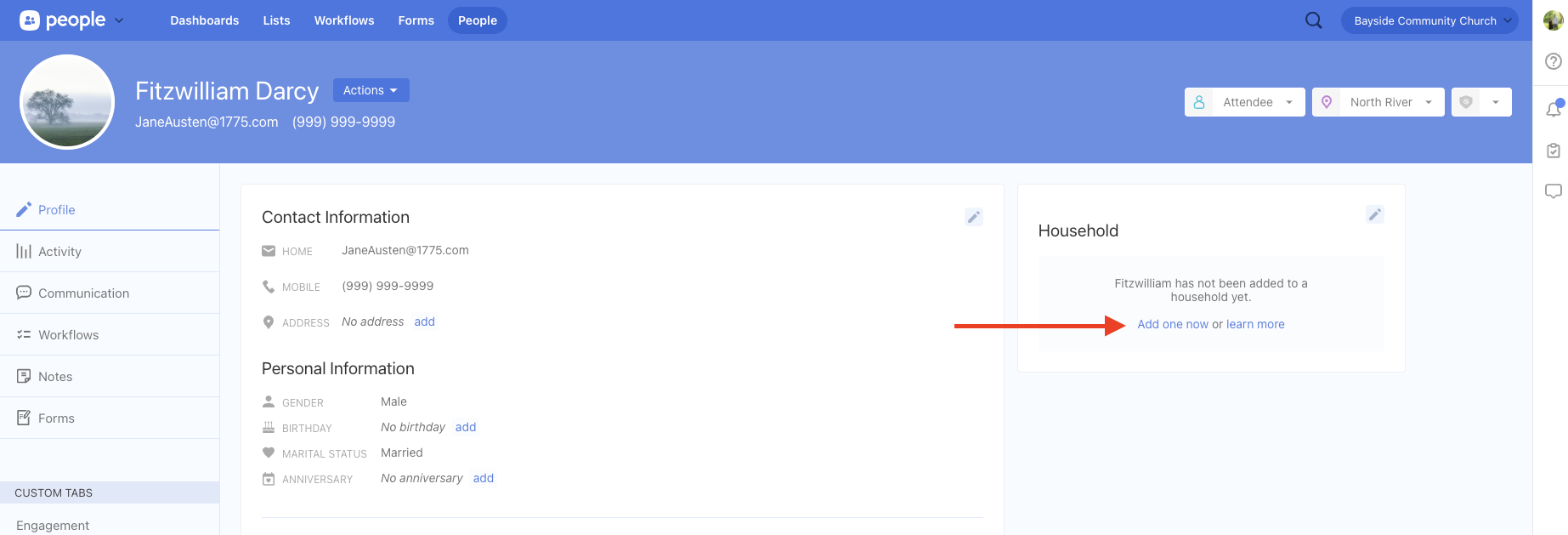
2) Next, select the blue "Add a household" button.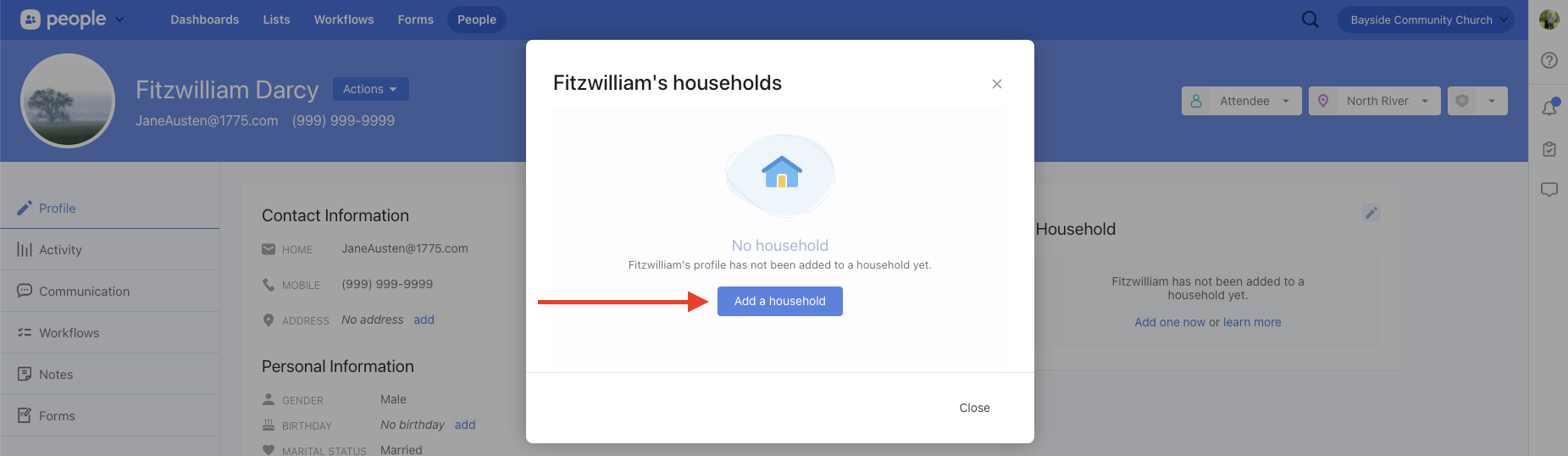
3) Confirm you want to create a new household by clicking the blue text.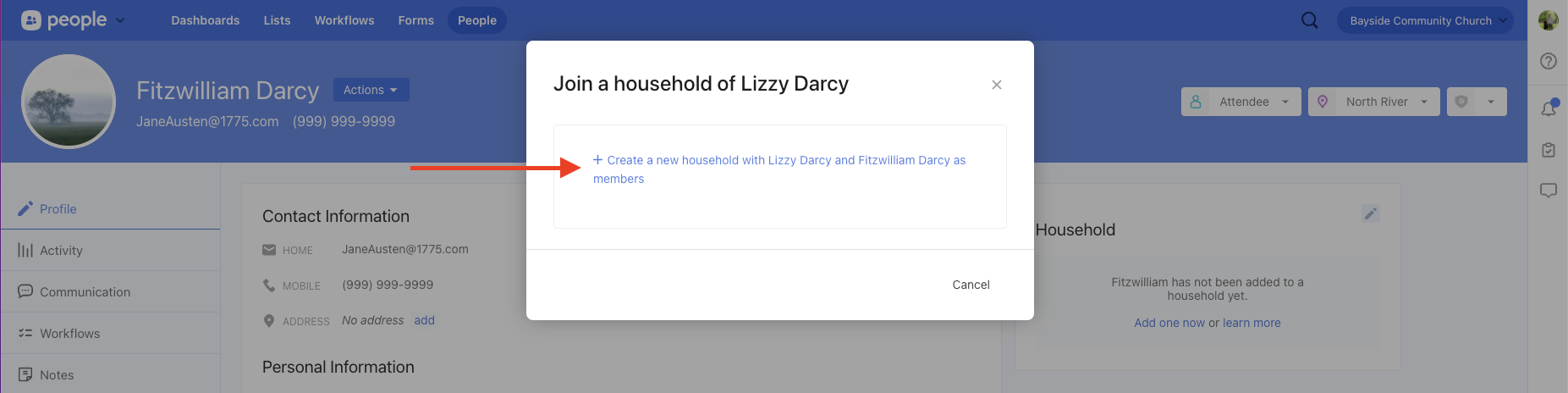
4) Search for the person you wish to add, then select their name. Do not select the light blue "Create New Person" button.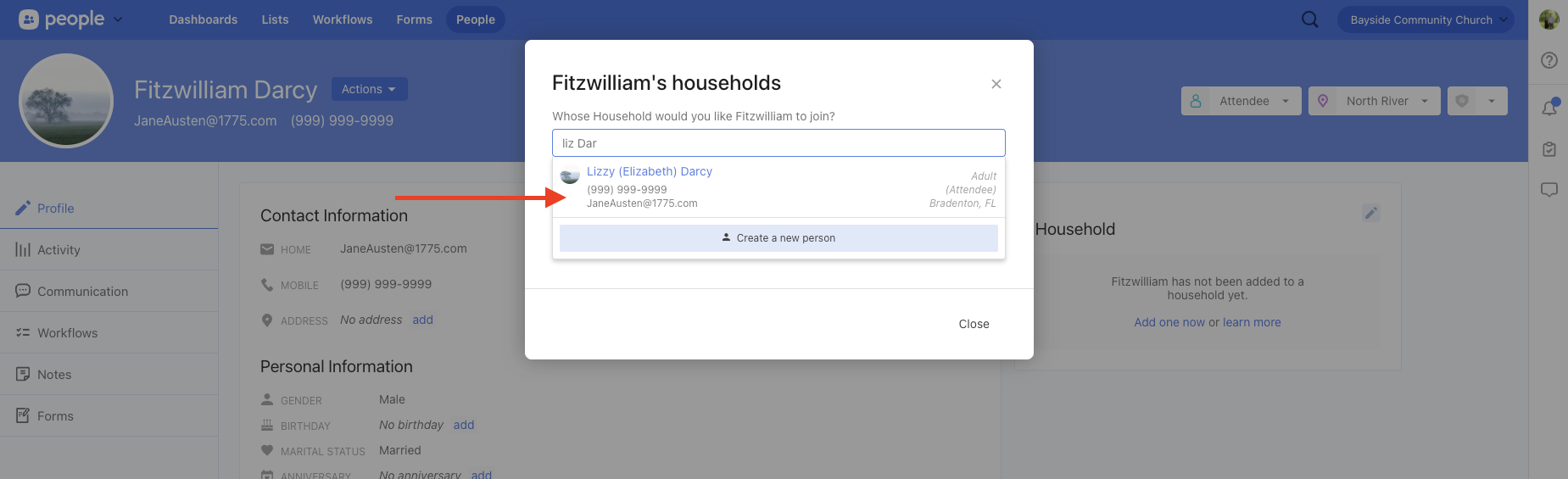
5) Scroll down and click the green "Save" button.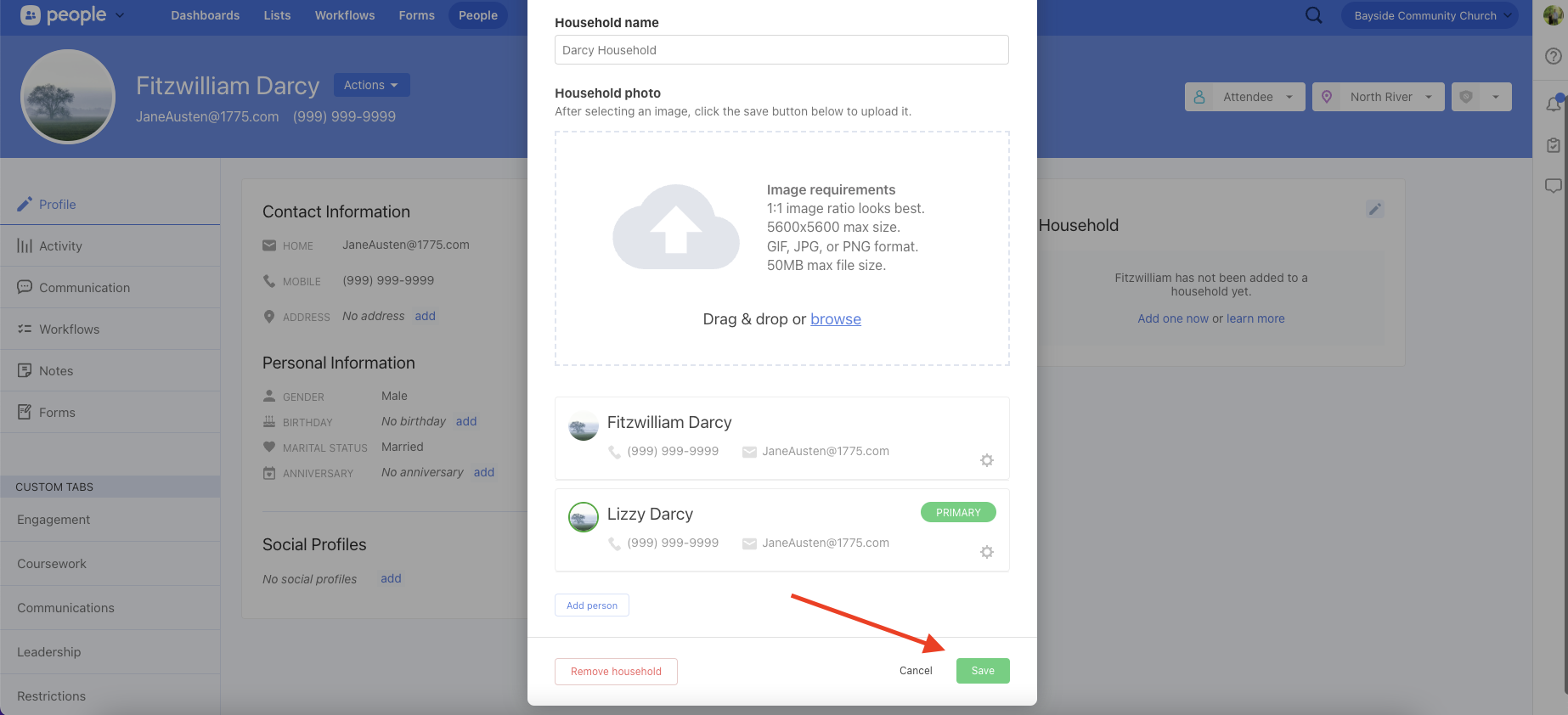
Editing an Existing Household
1) To add or remove someone from an existing household, select the pencil icon inside of the household box.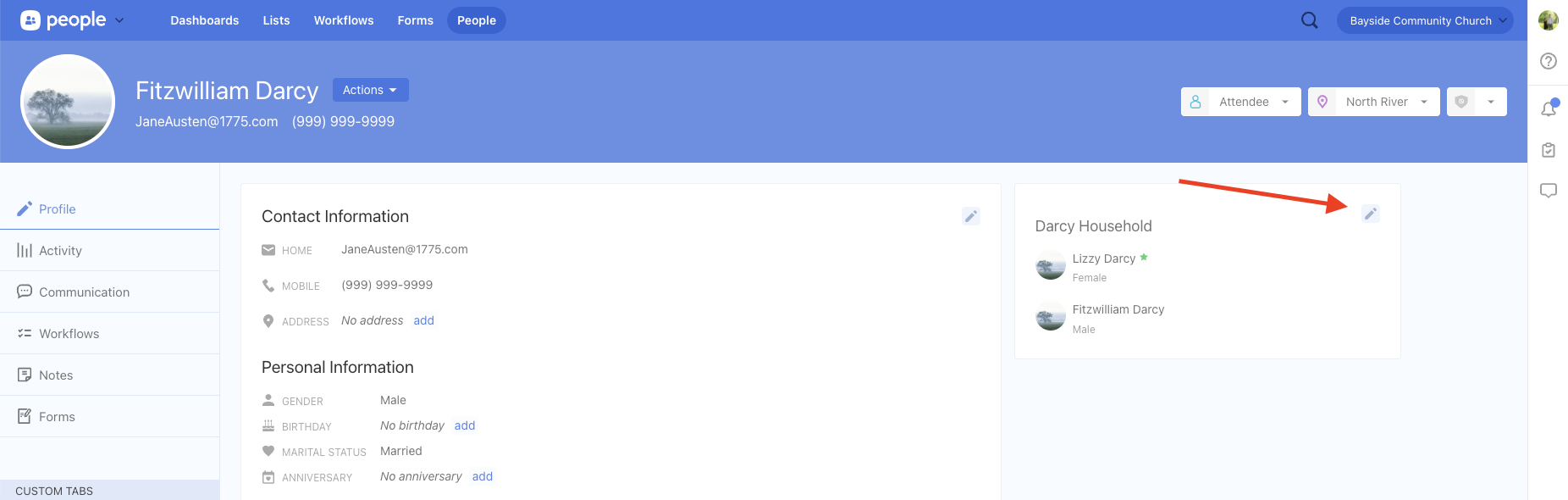
2) At the top of the window, you can edit the household name. To remove a member from the household, select the gear icon on the right of that person's name. You can add a person by clicking the "Add person" button on the bottom left. If you make any changes, click the green "Save" button.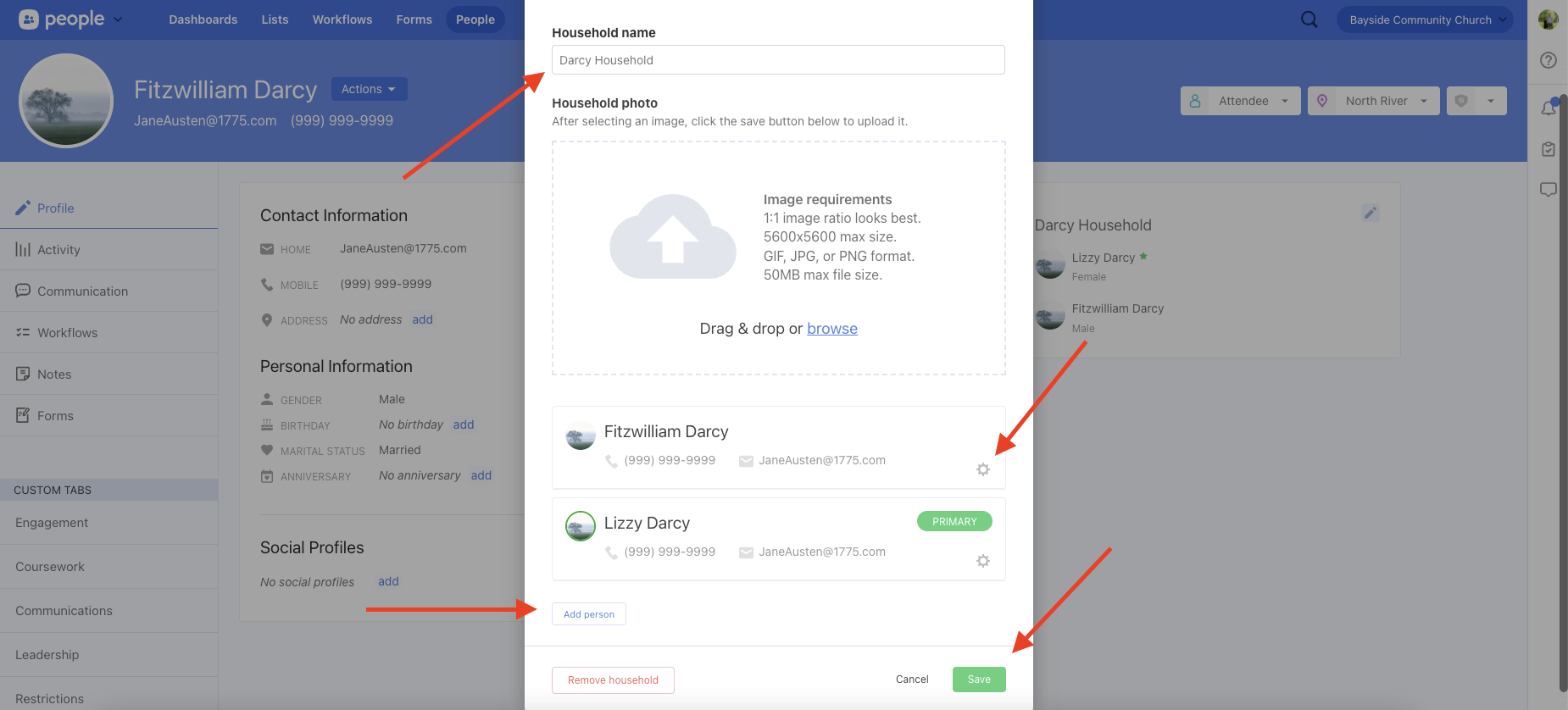
Primary Contact
Pay attention to who is listed as PRIMARY in a household. An Adult (ideally the parent of any children in the household) should be listed as primary; not a child. Use the Action gear to the right side to open the option, and "Make primary" for the parent.
Always remember to add any information you have as you edit or create profiles; membership status, campus, phone, birth date, grade in school for students, etc.
If you are unsure about any corrections for a household, please submit a support ticket to ask for help.